

When I was writing the last post on the four components of a Claude stack, I went to grab a screenshot of my memory folder and couldn’t find it.[1] Finder didn’t show .claude and Spotlight returned nothing. For ten minutes, I was frantically trying to figure it out. Did I have Mad Cow? Amnesia? Did Claude and I delete the whole thing when I mindlessly clicked continue when it prompted me to do so, as it was writing some Python code? Fortunately, not, Mac was just hiding it from me.
Anyone who read that post and went looking for the folder may have encountered the same issue. The folder exists, but it’s not in the repo you’re working from or where Finder wants you to look. The Memory component is one of the four pieces that make a Claude marketing OS work, and it lives in a part of your home directory that Mac considers off-limits by default. Finding the folder matters because it’s where everything that compounds across your sessions lives. Claude writes to it, you curate it occasionally, and over time, it holds more of your operating knowledge than any other file on disk.
An earlier post, “The marketer’s case for Claude Code,” covered the install and the four pieces.[2] The follow-up showed how those pieces compound. This post answers where the Memory component lives and how to open it without the ten minutes of panic that I just spent.
Here’s a five-minute walkthrough to help Mac users overcome some of the “smart defaults” that were put in place to simplify things but end up causing agita. Windows is easier, because File Explorer doesn’t auto-hide files by default. Two simple steps will cure all ills.
Where Claude stores your memory on a Mac
Every project gets its own memory folder inside your home directory. The base path on a Mac is ~/.claude/projects/<encoded-project-path>/memory/. Anthropic provides an easy way to open it without typing the path yourself. From inside Claude Code, type /memory and you’ll get a list of the memory files loaded into your session, along with a link to the folder.[3] Make sure you select the “Open auto-memory” folder option, which opens the folder in Finder.
But the /memory command doesn’t put the folder in the Cursor’s file tree, which is where I work. Each time I want to read a saved file, running a slash command is one too many steps. There’s a better answer, but first you need to know why Mac hides this folder from you.
Mac hides any file or folder whose name starts with a dot. By default, Finder ignores them, so your user folder doesn’t look like a server room. The Claude folder is called .claude, and Spotlight ignores the same files. That’s why my search for “claude” returned nothing during my ten-minute panic.
Finder will reveal hidden files if you tell it to. Open your home folder, then press Cmd+Shift+. (Command, Shift, and the period key together). Hidden files and folders appear. Press it again to hide them. Inside .claude, you’ll find a projects/ folder, and inside that, a subfolder named after your project’s full filesystem path, with slashes replaced by hyphens. Clunky, but you only need to navigate it once before the next move fixes it for good.
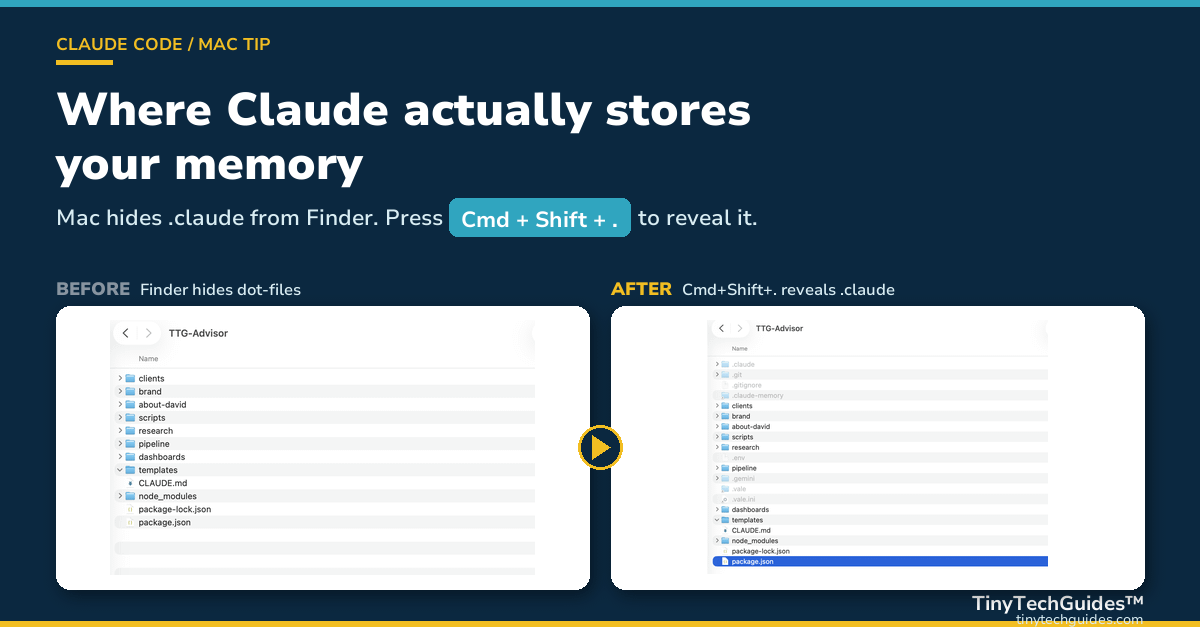
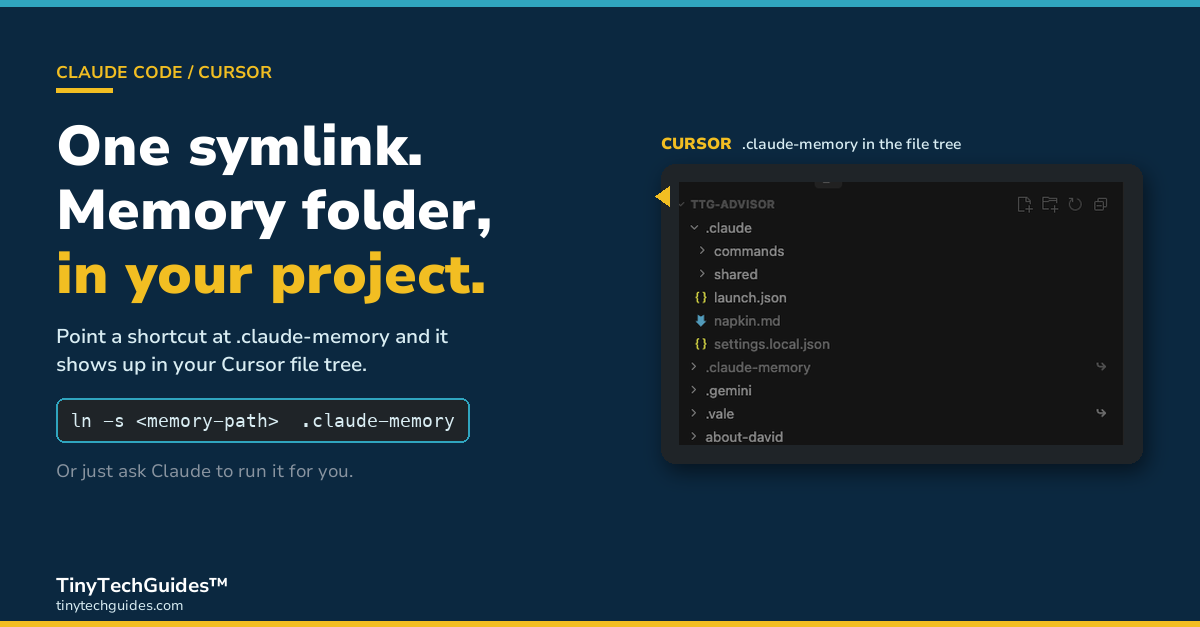
A symlink does the heavy lifting. One terminal command places a shortcut to the memory folder inside your project, so the link shows up at the top of your project’s file tree in Cursor. The full command looks like this:
ln -s ~/.claude/projects/-Users-david-sweenor-Documents-TTG-Advisor/memory ~/Documents/TTG-Advisor/.claude-memory
Replace the paths with your own project name and folder location. Or, if you’d rather not type the command yourself, ask Claude to create the symlink for you! Claude will run it with the correct paths.
A quick aside for the non-terminal natives. If you didn’t start your career at IBM running vi and Emacs on UNIX boxes, you may not have seen this one before. A symbolic link, or symlink, is a UNIX-era trick. The command creates a file that acts like the folder that it points to. Click on the link in Cursor, and you’re inside the memory folder, even though the actual files live in your home directory.
The link is named .claude-memory with a leading dot, so Finder still hides it. Cursor and most editors show dotfiles by default, so the link is visible exactly where you need it. If you’d rather see it in Finder too, drop the dot. Name it claude-memory instead.
Windows readers, the path resolves identically. C:\Users\<you>\.claude\projects\... puts you in the same folder structure. File Explorer doesn’t hide dot-files on Windows, so .claude is visible the moment you open your user folder. Different OS philosophy, same outcome. You can already see it.
What you’ll find inside
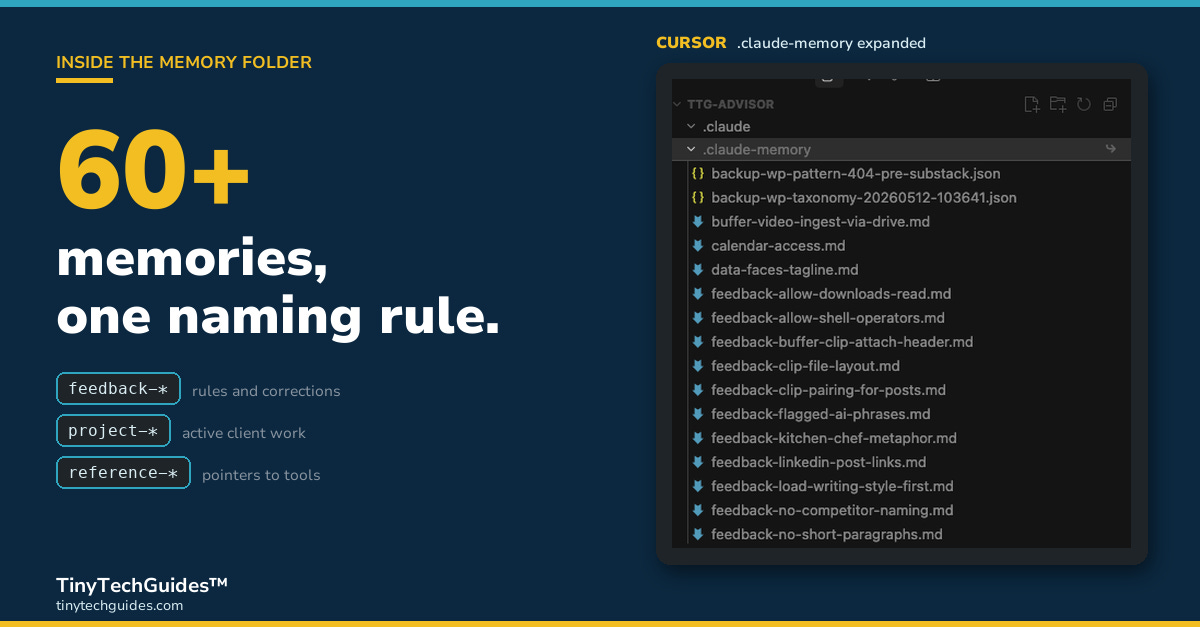
Once you’ve found the folder, you have to decide what’s worth putting in it. My TTG memory folder currently holds more than 60 files. Every entry is a decision about what survives across sessions.
The naming convention is a topical prefix followed by a short descriptor: feedback- for working-style rules and corrections, project- for active client work, reference- for pointers to external systems, and topic-specific prefixes like podcast-, wordpress-, and youtube- for tooling notes that don’t fit elsewhere.
Three real entries from my folder:
- feedback-flagged-ai-phrases.md: phrases I keep catching in drafts that need to die (”game-changer,” “shift” as a noun, and “delve”)
- reference-email-signature.md: the exact block to put at the bottom of every outbound email
- <obscured-client-project>.md: what’s active with one of my clients right now, who owns what, and what’s due next
MEMORY.md sits at the root of the folder. It’s the index, and each topic file gets a one-line entry. Claude reads the first 200 lines (or 25KB, whichever comes first) at the start of every session.[4] The index loads into every conversation; the topic files load only when Claude needs them. Think of MEMORY.md as the table of contents and the topic files as the chapters.
Curation cuts both ways. I don’t save session-specific task state, for instance. I tried it once, and a note about which post I was drafting on a Tuesday in March was useless by Wednesday morning. Now I save what still matters next week.
Memory is the piece that survives
Curation matters only because what you save compounds. Of the four components from the last post, Memory has the longest half-life. Skills run the plays that you trigger. CLAUDE.md captures each project’s rules. MCPs connect Claude to your live tools. Memory does what the others can’t. It carries what you’ve learned across every session, every project, and every conversation that follows.
Claude saves your corrections once. You don’t have to repeat them next session. The preferences that you record stay recorded. Over time, the folder shapes how Claude responds to the specific work that you do. As I’ve written before, teaching AI in your context beats generic automation.[5]
What’s worth saving and what isn’t is its own conversation. I’ll cover it in a future post on my weekly Claude playbook for B2B marketers. For now, settle for finding the folder and placing a symlink so Finder never traps you again.
Ten minutes of mad-cow panic later, I had my folder back. The harder question is whether I’ll use it once I know where it lives.
Frequently asked questions
Where does Claude Code store memory files on a Mac?
Claude Code stores memory files at ~/.claude/projects/<encoded-project-path>/memory/. Each project gets its own subdirectory inside .claude/projects/, named after the project’s filesystem path with slashes converted to hyphens. The .claude folder lives in your home directory but is hidden by default because it starts with a dot. The base path resolves to C:\Users\<you>\.claude\projects\... on Windows, where File Explorer shows it without any reveal step. Linux uses the same ~/.claude/projects/... path as Mac, with the same dot-file hiding convention.
Why can’t I see the .claude folder on my Mac?
macOS hides any file or folder whose name starts with a dot. Finder ignores them by default, and Spotlight skips them too. To reveal hidden files, open your home folder in Finder and press Cmd+Shift+. (Command, Shift, and the period key). The .claude folder appears in the file list. Press the same shortcut again to hide hidden files. Windows File Explorer doesn’t apply this convention, so .claude is visible there without any reveal step.
How do I make the Claude memory folder visible inside my project?
A symbolic link works best. From your terminal, run ln -s ~/.claude/projects/<your-encoded-path>/memory ~/Documents/<your-project>/.claude-memory. The symlink appears at the top of your project’s file tree in Cursor and other editors that show dotfiles by default. You can also ask Claude to create the symlink with the right paths substituted. The folder name keeps a leading dot, so Finder still hides it; drop the dot if you want to see it there too.
What is the /memory slash command in Claude Code?
The /memory command shows a list of memory files loaded into your current Claude Code session and provides a link to open the auto memory folder. Run it from within Claude Code, then click the link to launch the folder in Finder. The command works on every operating system that Claude Code supports, including Mac, Windows, and Linux. It’s the official Anthropic way to find the folder without typing the path, but it doesn’t place the folder inside your project’s file tree where you work.
What is MEMORY.md and what gets loaded into a Claude session?
MEMORY.md sits at the root of the auto memory folder and acts as the index. Each topic file in the folder gets a one-line entry in MEMORY.md. At the start of every Claude Code session, Claude reads the first 200 lines (or 25KB, whichever comes first) of MEMORY.md. The topic files themselves load only when Claude needs them. Think of MEMORY.md as the table of contents and the topic files as the chapters Claude pulls when relevant.
What’s the easiest way to open Claude Code’s memory folder?
Three paths work. Run /memory from inside Claude Code and click the link to launch the folder in Finder. That’s the fastest one-off method. To browse manually, open Finder, press Cmd+Shift+. to reveal hidden files, and navigate to ~/.claude/projects/<your-project>/memory/. For daily access while editing, create a symbolic link within your project that points to the folder so it appears in the Cursor’s file tree. The /memory command works on every operating system; the symlink is most useful when you live inside an editor like Cursor.
About David Sweenor
David Sweenor is a Top 25 AI thought leader, author, and founder of TinyTechGuides. He spent the first half of his career as a data practitioner at IBM, working in data science, business intelligence, and data warehousing, and the second half in product marketing leadership at SAS, Dell, Quest, TIBCO, Alteryx, and Alation. His writing focuses on the practical intersection of AI, analytics, and B2B marketing.
Books
- Artificial Intelligence: An Executive Guide to Make AI Work for Your Business
- Generative AI Business Applications
- The Generative AI Practitioner’s Guide
- The CIO’s Guide to Adopting Generative AI
Follow David on Twitter @DavidSweenor and connect with him on LinkedIn.
Footnotes
[1]Sweenor, David. “Is your Claude marketing OS a little quirky?” TinyTechGuides, May 13, 2026. https://tinytechguides.com/blog/four-components-claude-stack/
[2]Sweenor, David. “The marketer’s case for Claude Code.” TinyTechGuides, May 8, 2026. https://tinytechguides.com/blog/the-marketers-case-for-claude-code/
[3]Anthropic. “How Claude remembers your project.” Claude Code documentation. Accessed May 13, 2026. https://code.claude.com/docs/en/memory
[4]Anthropic. “How Claude remembers your project.” Claude Code documentation. Accessed May 13, 2026. https://code.claude.com/docs/en/memory
[5]Sweenor, David. “The Barcode on the Bronze: Why Your AI Needs to Know What Makes You Different.” TinyTechGuides, November 18, 2025. https://tinytechguides.com/blog/the-barcode-on-the-bronze-why-your-ai-needs-to-know-what-makes-you-different/